Pinned Pricing Table
The pinned-pricing-table plugin creates an advanced, responsive feature comparison table. On desktop screens (≥ 1024px), it pins the plan header cards to the top of the viewport using GSAP’s ScrollTrigger so they remain visible while visitors scroll through the feature rows. On mobile screens (< 1024px), it replaces the multi-column header with a compact, pinned dropdown that lets visitors pick one plan at a time.
In development, it is implemented in assets/js/modules/pinned-pricing-table.js and initialized automatically by assets/js/main.js.
Price Switch Integration: This plugin works seamlessly with the price-switch plugin. When the pricing interval changes (e.g. Monthly → Yearly), the price-switch plugin automatically updates every price element on the page — including those inside the desktop header cards and the mobile dropdown header.
How It Works
The pricing table is made up of three co-ordinated pieces that live inside a single wrapper:
- Desktop Header Row — A row of plan cards (name, price, CTA button) laid out in a CSS grid. When the visitor scrolls past it, GSAP pins it to the top of the viewport so the plan names stay visible while they browse the feature list below.
- Mobile Header Row — A compact bar with a dropdown menu. The visitor selects a plan from the dropdown, and only that plan’s column is shown in the feature rows. This header is also pinned to the top on scroll.
- Feature Rows — The actual comparison grid. On desktop, every plan column is visible side-by-side. On mobile, only the selected plan’s column is shown next to the feature name.
Only one header is ever visible at a time — the CSS classes hidden lg:block (desktop) and lg:hidden (mobile) handle the switch at the 1024px breakpoint.
Anatomy of the Table
The table is built from three distinct HTML regions. Below is a high-level outline of how they fit together:
<div data-pinned-pricing-table>

  <!-- 1. DESKTOP HEADER — pinned on scroll (≥ 1024px) -->
  <div data-sticky-header="desktop" class="hidden lg:block">
    <!-- Grid with: 1 empty cell + 1 card per plan -->
  </div>

  <!-- 2. MOBILE HEADER — pinned on scroll (< 1024px) -->
  <div data-sticky-header="mobile" class="lg:hidden">
    <!-- Dropdown with: trigger button + menu of plan options -->
  </div>

  <!-- 3. FEATURE ROWS — the comparison grid -->
  <div class="rounded-2xl border">
    <!-- Category header -->
    <!-- One row per feature, each row has 1 label cell + 1 value cell per plan -->
  </div>

</div>
Markup Requirements
Data Attributes Reference
Every data- attribute the plugin depends on is listed below. If you rename or remove any of these, the JavaScript will not find the element and that part of the functionality will break.
Core Container & Pinning
| Attribute | Applied to | Purpose |
|---|---|---|
data-pinned-pricing-table | The outermost wrapper <div> | Tells the plugin “this is the pricing table”. Everything else must be inside this element. |
data-sticky-header="desktop" | The desktop header <div> | The element GSAP will pin on screens ≥ 1024px. |
data-sticky-header="mobile" | The mobile header <div> | The element GSAP will pin on screens < 1024px. |
Desktop Header
| Attribute | Applied to | Purpose |
|---|---|---|
data-plan="planName" | Each plan card <div> in the desktop header | Identifies the plan (e.g. data-plan="starter"). Used purely for readability — the JS does not query this attribute, but keeping it consistent makes your code easier to maintain. |
data-price-monthly | The price <div> inside each plan card | The monthly price string (e.g. $49). Used by the price-switch plugin. |
data-price-annual | The price <div> inside each plan card | The annual price string (e.g. $39). Used by the price-switch plugin. |
Mobile Dropdown
| Attribute | Applied to | Purpose |
|---|---|---|
data-mobile-pricing-dropdown | The dropdown wrapper <div> | Scopes all dropdown queries to this container. |
data-dropdown-trigger | The <button> that opens/closes the dropdown | Toggles aria-expanded and shows/hides the menu. |
data-dropdown-menu | The menu <div> containing plan buttons | The panel that appears when the trigger is clicked. |
data-dropdown-label | A <span> inside the trigger | Displays the currently selected plan name (e.g. “Starter”). Updated automatically on selection. |
data-dropdown-price | A <span> inside the trigger | Displays the currently selected plan’s price. Must also carry data-price-monthly and data-price-annual for the price-switch plugin. |
data-dropdown-price-suffix | A <span> inside the trigger (e.g. /mo) | Shown for priced plans, hidden for custom-price plans like Enterprise. |
data-select-plan="planName" | Each <button> inside the dropdown menu | The plan this button selects. The value (e.g. "starter") must exactly match the data-plan-col values used in the feature rows. |
data-monthly | Each data-select-plan button | The monthly price string for this plan. |
data-annual | Each data-select-plan button | The annual price string for this plan. |
data-no-price-suffix | (Optional) A data-select-plan button | Add this to plans that don’t have a numeric price (e.g. Enterprise with “Custom price”) to hide the /mo suffix in the trigger. |
Feature Rows
| Attribute | Applied to | Purpose |
|---|---|---|
data-plan-col="planName" | Each plan value cell in every feature row | Links this cell to a plan. The value must exactly match the corresponding data-select-plan value. On mobile, the JS adds/removes the max-lg:hidden class on these cells to show only the selected plan. |
The data-select-plan values in the mobile dropdown and the data-plan-col values in the feature rows must match exactly (they are case-sensitive). If they don’t match, selecting a plan in the dropdown will not show the correct column.
Customizing Plan Details
Changing Plan Names, Prices, and CTAs
All plan content is plain HTML — you can edit it directly:
- Plan name: Edit the
<h3>text inside the desktop plan card, the<button>text inside the mobile dropdown menu, and the initialdata-dropdown-labeltext on the trigger. - Price: Update the
data-price-monthlyanddata-price-annualattribute values and the visible text content in the same element. You need to do this in two places for plans with a price:- The desktop header card’s price
<div>. - The mobile dropdown’s
<button>via itsdata-monthlyanddata-annualattributes.
- The desktop header card’s price
- CTA button: Edit the
<a>tag text andhrefinside each desktop plan card.
The mobile dropdown trigger’s price display is updated automatically by the JavaScript when a plan is selected — you only need to set the initial values for the default plan (the one shown on page load).
Adding or Removing Plans
The template ships with 4 plans: Free, Starter, Professional, and Enterprise. You can add more or remove some, but there are four places you need to update every time:
Update the Desktop Header Grid
The desktop header uses a CSS grid to lay out the plan cards side by side. The grid definition is on the inner <div>:
<div class="grid grid-cols-[minmax(200px,1.5fr)_repeat(4,1fr)] gap-4">The repeat(4, 1fr) means “4 equal plan columns”. If you change the number of plans:
- 3 plans: Change to
repeat(3, 1fr) - 5 plans: Change to
repeat(5, 1fr) - 6 plans: Change to
repeat(6, 1fr)
Then add or remove plan card <div> elements inside this grid. Each card needs the same structure:
<div class="flex flex-col rounded-2xl border border-border/60 bg-white p-6" data-plan="your-plan-name">
  <h3 class="text-xl font-medium text-foreground">Plan Name</h3>
  <p class="mt-2 text-xs text-muted-foreground">From</p>
  <div class="mt-1 text-3xl font-light text-foreground"
    data-price-monthly="$XX"
    data-price-annual="$XX">
    $XX
  </div>
  <p class="mt-1 text-xs text-muted-foreground">Per month</p>
  <a href="#" class="group mt-6 inline-flex w-full items-center justify-center gap-2 rounded-full bg-primary px-5 py-2.5 text-sm font-medium text-white">
    <!-- CTA button content -->
    <span class="relative overflow-hidden">
      <span class="relative block h-full translate-y-0 transition-transform duration-300 ease-in-out group-hover:-translate-y-full">Get started</span>
      <span class="absolute top-0 left-0 block h-full translate-y-full transition-transform duration-300 ease-in-out group-hover:translate-y-0">Get started</span>
    </span>
    <span class="hidden translate-x-0 transition-transform duration-300 ease-in-out group-hover:translate-x-2 xl:block">
      <i data-lucide="chevron-right" class="size-4"></i>
    </span>
  </a>
</div>
Update the Mobile Dropdown Menu
Add or remove a <button> inside data-dropdown-menu for each plan. Every button needs:
<button
  class="rounded-lg px-4 py-3 text-left text-sm font-medium text-foreground transition-colors hover:bg-muted hover:text-muted-foreground"
  data-select-plan="your-plan-name"
  data-monthly="$XX"
  data-annual="$XX"
>
  Plan Name
</button>
For plans with custom pricing (no numeric value), add data-no-price-suffix:
<button
  data-select-plan="enterprise"
  data-monthly="Custom price"
  data-annual="Custom price"
  data-no-price-suffix
>
  Enterprise
</button>
Important details:
- The first button should have the classes
bg-primary text-white(highlighted as active) anddata-active="true"to match the initial state. - All other buttons should not have these classes — the JS adds them dynamically.
- The
data-select-planvalue must match thedata-plan-colvalues you use in the feature rows.
Update Every Feature Row
Each feature row is a grid with one label cell followed by one value cell per plan. The grid definition must match the desktop header:
<div class="group grid grid-cols-2 border-b border-border last:border-b-0
  lg:grid-cols-[minmax(200px,1.5fr)_repeat(4,1fr)]">
Again, change repeat(4, 1fr) to match your plan count.
Then add or remove data-plan-col cells. The rules for mobile visibility are:
- The default plan’s column (the one shown on page load — typically the first plan) should not have
max-lg:hiddenin its class list. This ensures it’s visible on mobile before the user interacts with the dropdown. - All other plan columns must include
max-lg:hiddenin their class list so they start hidden on mobile. The JavaScript will dynamically add/remove this class when the user picks a plan from the dropdown.
Example for a row with 3 plans:
<div class="group grid grid-cols-2 border-b border-border last:border-b-0
  lg:grid-cols-[minmax(200px,1.5fr)_repeat(3,1fr)]">

  <!-- Feature label -->
  <div class="flex items-center justify-start gap-2 bg-muted/10 p-4
    lg:border-r lg:border-b-0 lg:border-border lg:bg-transparent lg:px-6 lg:py-5">
    <span class="text-sm font-medium text-foreground">Feature Name</span>
  </div>

  <!-- Plan 1 (default — no max-lg:hidden) -->
  <div class="flex items-center justify-end p-4 last:border-r-0
    lg:justify-center lg:border-r lg:border-b-0 lg:border-border lg:bg-transparent lg:px-6 lg:py-5"
    data-plan-col="free">
    <i data-lucide="check" class="size-5 text-muted-foreground"></i>
  </div>

  <!-- Plan 2 (hidden on mobile by default) -->
  <div class="flex items-center justify-end p-4 last:border-r-0 max-lg:hidden
    lg:justify-center lg:border-r lg:border-b-0 lg:border-border lg:bg-transparent lg:px-6 lg:py-5"
    data-plan-col="starter">
    <i data-lucide="check" class="size-5 text-muted-foreground"></i>
  </div>

  <!-- Plan 3 (hidden on mobile by default) -->
  <div class="flex items-center justify-end p-4 last:border-r-0 max-lg:hidden
    lg:justify-center lg:border-b-0 lg:border-border lg:bg-transparent lg:px-6 lg:py-5"
    data-plan-col="professional">
    <i data-lucide="check" class="size-5 text-muted-foreground"></i>
  </div>
</div>
The grid-cols-2 class on each feature row is always 2 regardless of how many plans you have. It controls the mobile layout where only the feature name and the single selected plan’s value are shown. The lg:grid-cols-[...] class is where you set the actual plan count for the desktop layout.
Update the Mobile Dropdown Default State
The mobile dropdown trigger shows the default plan’s name and price on page load. Make sure these match your first plan:
<button data-dropdown-trigger aria-expanded="false" ...>
  <span>
    <span data-dropdown-label>Free</span>            <!-- ← Default plan name -->
    <span>
      <span data-dropdown-price
        data-price-monthly="$0"                       <!-- ← Default monthly price -->
        data-price-annual="$0">$0</span>              <!-- ← Default annual price -->
      <span data-dropdown-price-suffix>/mo</span>
    </span>
  </span>
</button>
If your default plan is “Starter” at $49/mo, change data-dropdown-label to “Starter”, the data-price-monthly to “$49”, the visible text to “$49”, and so on.
Checklist When Adding or Removing a Plan
Use this checklist to make sure you haven’t missed anything:
| # | Location | What to do |
|---|---|---|
| 1 | Desktop header grid class | Update repeat(N, 1fr) to match your plan count |
| 2 | Desktop header cards | Add/remove a plan card <div> with data-plan, price attributes, and CTA |
| 3 | Mobile dropdown menu | Add/remove a <button> with data-select-plan, data-monthly, data-annual |
| 4 | Every feature row grid class | Update lg:grid-cols-[minmax(200px,1.5fr)_repeat(N,1fr)] |
| 5 | Every feature row value cells | Add/remove a data-plan-col cell for the plan |
| 6 | Mobile dropdown trigger | Set the default plan name and price to match your first plan |
| 7 | Mobile dropdown first button | Ensure it has data-active="true", bg-primary, and text-white |
| 8 | Default plan column cells | Ensure the default plan’s data-plan-col cells do not have max-lg:hidden |
| 9 | All other plan column cells | Ensure they do have max-lg:hidden |
Highlighting a “Most Popular” Plan
To highlight one plan card as the recommended choice (like “Professional” in the template), add these to the desktop header card:
- Change the border class from
border-border/60toborder-primary. - Add a badge element inside the card:
<div class="relative flex flex-col rounded-2xl border border-primary bg-white p-6" data-plan="professional">
  <span class="absolute -top-3.5 left-1/2 -translate-x-1/2 rounded-full bg-primary px-3 py-1
    text-[10px] font-medium tracking-wider whitespace-nowrap text-white uppercase">
    Most popular
  </span>
  <!-- Rest of the card content -->
</div>
To give the “most popular” plan a subtle column highlight in the feature rows, add lg:bg-muted/50 to its data-plan-col cells. The template already does this for the Professional plan.
Feature Row Value Types
Each value cell can display different content types depending on the feature. Here are the patterns used in the template:
Checkmark (feature included):
<i data-lucide="check" class="size-5 text-muted-foreground"></i>Cross (feature not included):
<i data-lucide="x" class="size-4 text-muted-foreground"></i>Text value:
<span class="text-center text-xs font-medium text-muted-foreground">Up to 100k</span>Markup Example
Below is a simplified structural example showing all three parts of the table with 4 plans. Comments mark every important attribute and class:
<div data-pinned-pricing-table class="relative z-1">
  <!-- ============================================ -->
  <!-- 1. DESKTOP HEADER (sticky on scroll, ≥ 1024px) -->
  <!-- ============================================ -->
  <div data-sticky-header="desktop" class="relative z-40 hidden lg:block">
    <div class="relative rounded-2xl px-4 py-8
      before:absolute before:inset-x-0 before:top-[-24px] before:bottom-0
      before:z-1 before:bg-background/70 before:backdrop-blur-[3px]
      sm:mx-0 sm:px-0 md:py-10">
      <!-- Grid: 1 empty cell + 4 plan columns — update repeat(N) when adding/removing plans -->
      <div class="relative z-2 grid grid-cols-[minmax(200px,1.5fr)_repeat(4,1fr)] gap-4">

        <!-- Empty cell (aligns with feature labels) -->
        <div class="flex items-end pb-4"></div>

        <!-- Plan card -->
        <div class="flex flex-col rounded-2xl border border-border/60 bg-white p-6" data-plan="free">
          <h3 class="text-xl font-medium text-foreground">Free</h3>
          <p class="mt-2 text-xs text-muted-foreground">From</p>
          <div class="mt-1 text-3xl font-light text-foreground"
            data-price-monthly="$0" data-price-annual="$0">$0</div>
          <p class="mt-1 text-xs text-muted-foreground">Per month</p>
          <a href="#" class="group mt-6 inline-flex w-full items-center justify-center gap-2 rounded-full bg-primary px-5 py-2.5 text-sm font-medium text-white">
            <!-- CTA content -->
          </a>
        </div>

        <!-- Repeat for each plan... -->
      </div>
    </div>
  </div>

  <!-- ============================================ -->
  <!-- 2. MOBILE HEADER (sticky on scroll, < 1024px) -->
  <!-- ============================================ -->
  <div data-sticky-header="mobile" class="relative z-40 mb-4 lg:hidden">
    <div class="border-b border-border bg-background/90 py-4 backdrop-blur-md">
      <div class="relative w-full" data-mobile-pricing-dropdown>

        <!-- Trigger button — shows the currently selected plan -->
        <button type="button" aria-expanded="false"
          class="flex w-full items-center justify-between rounded-xl border border-border bg-white p-4 text-left"
          data-dropdown-trigger>
          <span class="flex flex-col">
            <span class="text-[10px] font-medium tracking-widest text-muted-foreground uppercase">Selected Plan</span>
            <span class="flex items-baseline gap-2">
              <span class="text-lg font-medium text-foreground" data-dropdown-label>Free</span>
              <span class="flex items-baseline gap-0.5" data-dropdown-price-container>
                <span class="text-lg font-light text-foreground" data-dropdown-price
                  data-price-monthly="$0" data-price-annual="$0">$0</span>
                <span class="text-[10px] text-muted-foreground" data-dropdown-price-suffix>/mo</span>
              </span>
            </span>
          </span>
          <i data-lucide="chevron-down" class="size-5 text-muted-foreground transition-transform duration-200"></i>
        </button>

        <!-- Dropdown menu — one button per plan -->
        <div class="pointer-events-none absolute top-full left-0 z-50 mt-2 w-full origin-top scale-95
          transform rounded-xl border border-border bg-white opacity-0 shadow-lg transition-all duration-200"
          data-dropdown-menu>
          <div class="flex flex-col gap-1 p-2">
            <!-- Default plan button (highlighted) -->
            <button class="rounded-lg bg-primary px-4 py-3 text-left text-sm font-medium text-white transition-colors hover:bg-muted hover:text-muted-foreground"
              data-active="true" data-select-plan="free" data-monthly="$0" data-annual="$0">
              Free
            </button>
            <button class="rounded-lg px-4 py-3 text-left text-sm font-medium text-foreground transition-colors hover:bg-muted hover:text-muted-foreground"
              data-select-plan="starter" data-monthly="$49" data-annual="$39">
              Starter
            </button>
            <button class="rounded-lg px-4 py-3 text-left text-sm font-medium text-foreground transition-colors hover:bg-muted hover:text-muted-foreground"
              data-select-plan="professional" data-monthly="$149" data-annual="$119">
              Professional
            </button>
            <button class="rounded-lg px-4 py-3 text-left text-sm font-medium text-foreground transition-colors hover:bg-muted hover:text-muted-foreground"
              data-select-plan="enterprise" data-monthly="Custom price" data-annual="Custom price" data-no-price-suffix>
              Enterprise
            </button>
          </div>
        </div>

      </div>
    </div>
  </div>

  <!-- ============================================ -->
  <!-- 3. FEATURE ROWS                              -->
  <!-- ============================================ -->
  <div class="overflow-hidden rounded-2xl border border-border">
    <!-- Category Header -->
    <div class="flex items-center justify-between border-b border-border bg-muted/40 p-6">
      <h4 class="text-lg font-medium text-foreground">Key features</h4>
    </div>

    <!-- Feature Row -->
    <!-- grid-cols-2 = mobile (label + 1 value), lg:repeat(4) = desktop (label + 4 values) -->
    <div class="group grid grid-cols-2 border-b border-border last:border-b-0
      lg:grid-cols-[minmax(200px,1.5fr)_repeat(4,1fr)]">

      <!-- Feature label -->
      <div class="flex items-center justify-start gap-2 bg-muted/10 p-4
        lg:border-r lg:border-b-0 lg:border-border lg:bg-transparent lg:px-6 lg:py-5">
        <span class="text-sm font-medium text-foreground">Feature Name</span>
      </div>

      <!-- Free (default plan — NO max-lg:hidden) -->
      <div class="flex items-center justify-end p-4 last:border-r-0
        lg:justify-center lg:border-r lg:border-b-0 lg:border-border lg:bg-transparent lg:px-6 lg:py-5"
        data-plan-col="free">
        <i data-lucide="check" class="size-5 text-muted-foreground"></i>
      </div>

      <!-- Starter (NOT default — HAS max-lg:hidden) -->
      <div class="flex items-center justify-end p-4 last:border-r-0 max-lg:hidden
        lg:justify-center lg:border-r lg:border-b-0 lg:border-border lg:bg-transparent lg:px-6 lg:py-5"
        data-plan-col="starter">
        <i data-lucide="check" class="size-5 text-muted-foreground"></i>
      </div>

      <!-- Professional (NOT default — HAS max-lg:hidden, + bg-muted/50 for highlight) -->
      <div class="flex items-center justify-end p-4 last:border-r-0 max-lg:hidden
        lg:justify-center lg:border-r lg:border-b-0 lg:border-border lg:bg-muted/50 lg:px-6 lg:py-5"
        data-plan-col="professional">
        <i data-lucide="check" class="size-5 text-muted-foreground"></i>
      </div>

      <!-- Enterprise (NOT default — HAS max-lg:hidden, last column: no lg:border-r) -->
      <div class="flex items-center justify-end p-4 last:border-r-0 max-lg:hidden
        lg:justify-center lg:border-b-0 lg:border-border lg:bg-transparent lg:px-6 lg:py-5"
        data-plan-col="enterprise">
        <i data-lucide="check" class="size-5 text-muted-foreground"></i>
      </div>
    </div>

    <!-- Repeat for each feature... -->
  </div>
</div>
Demo Example
View the complete code sample on this page.
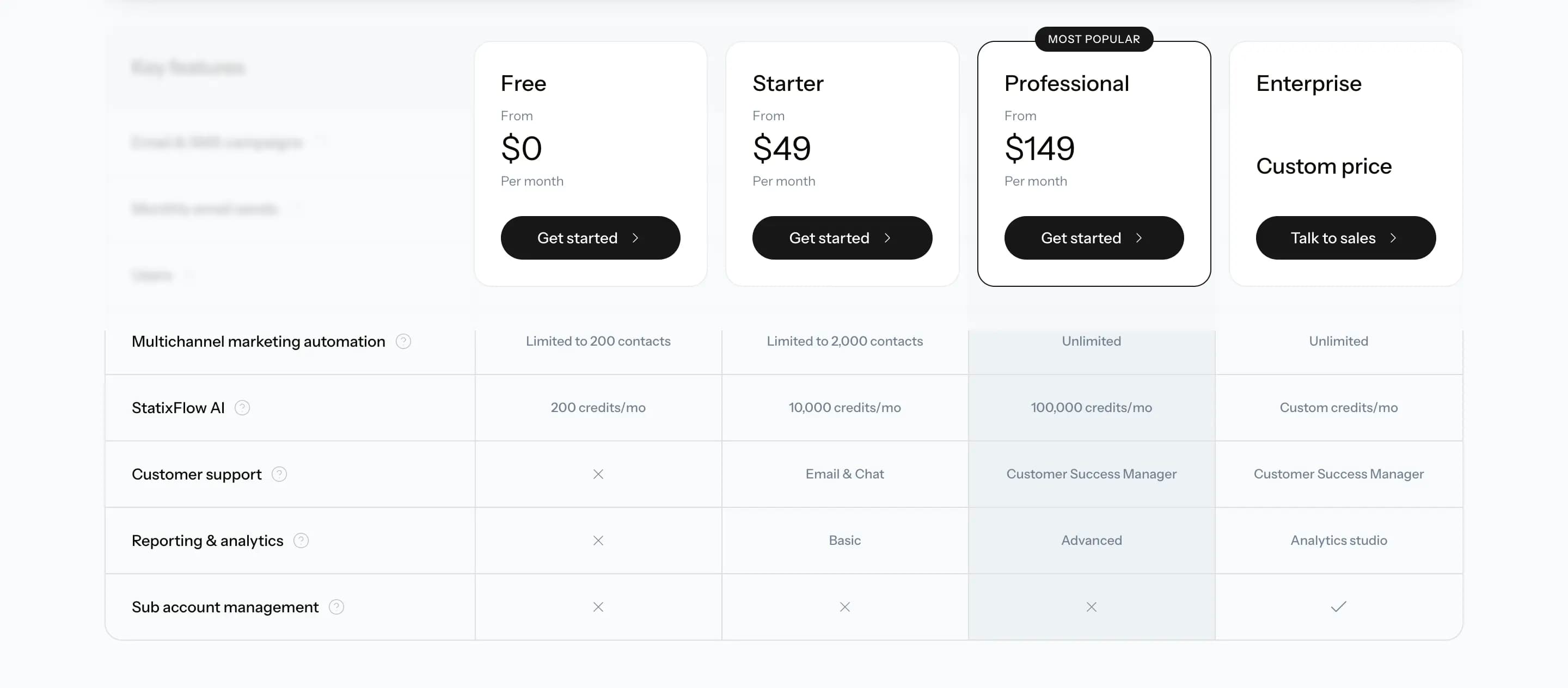 Pricing Page